> ## Documentation Index
> Fetch the complete documentation index at: https://docs.listenlabs.ai/llms.txt
> Use this file to discover all available pages before exploring further.
# Localizing Your Study: Auto-Translations
> Launch studies in multiple languages with automatic translation — no manual translation work required
Listen automatically translates your **entire interview guide** and all participant responses in seconds into **90+ supported languages**, so you can launch studies and analyze results across markets without waiting on manual translation work.
Whether you're testing concepts in Japan, running interviews in Brazil, or surveying users in France, multilingual research is as fast and seamless as English-only studies.
Looking to have interview questions read aloud in participants' language? See [Multilingual Voice Interviewer](/setup-to-launch/multi-lingual-voice-interviewer) for audio support across 40+ languages
## Configure Your Study Lanaguage
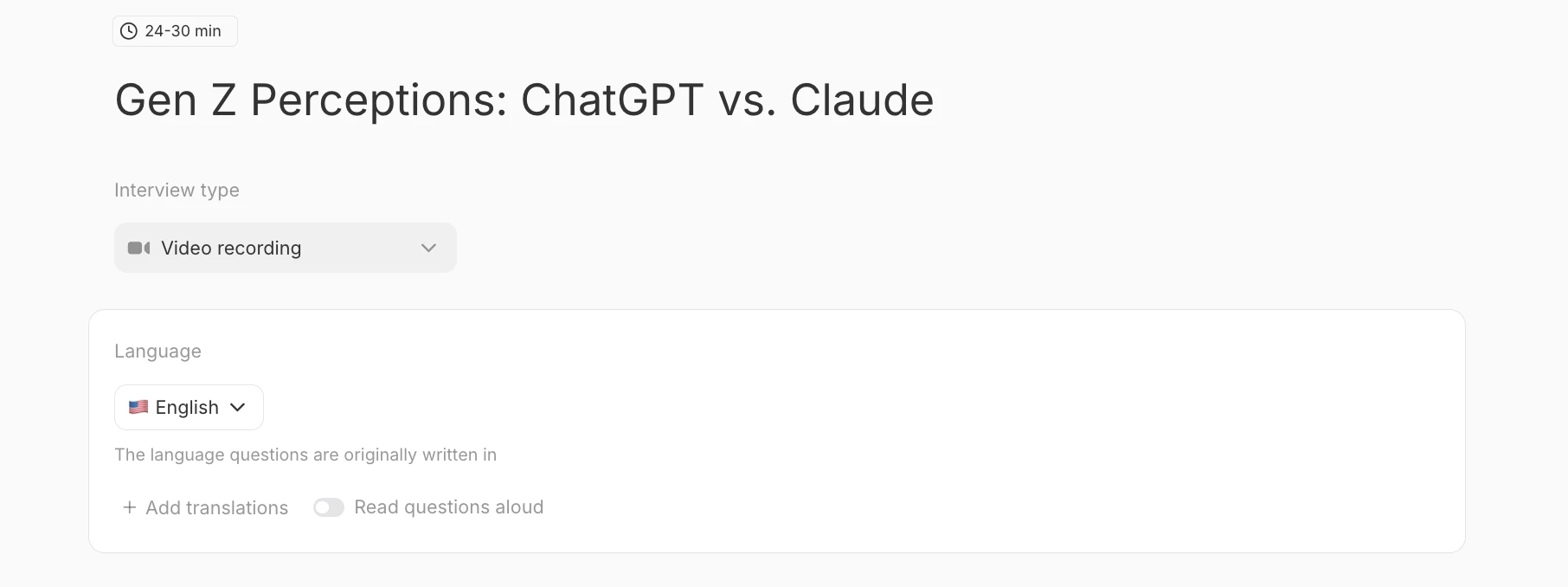
Your **Study Language** determines:
* The language you write your study in
* The language your analysis report will be generated in
You can change it under the "**Language**" section at the top of your Discussion Guide.
By default, this is set to **English**. You can toggle this off if your Study Language is set to a different language, and you would like the analysis to be run in that respective language.
 ## Turning On Translations
To make your study available in multiple languages:
## Turning On Translations
To make your study available in multiple languages:
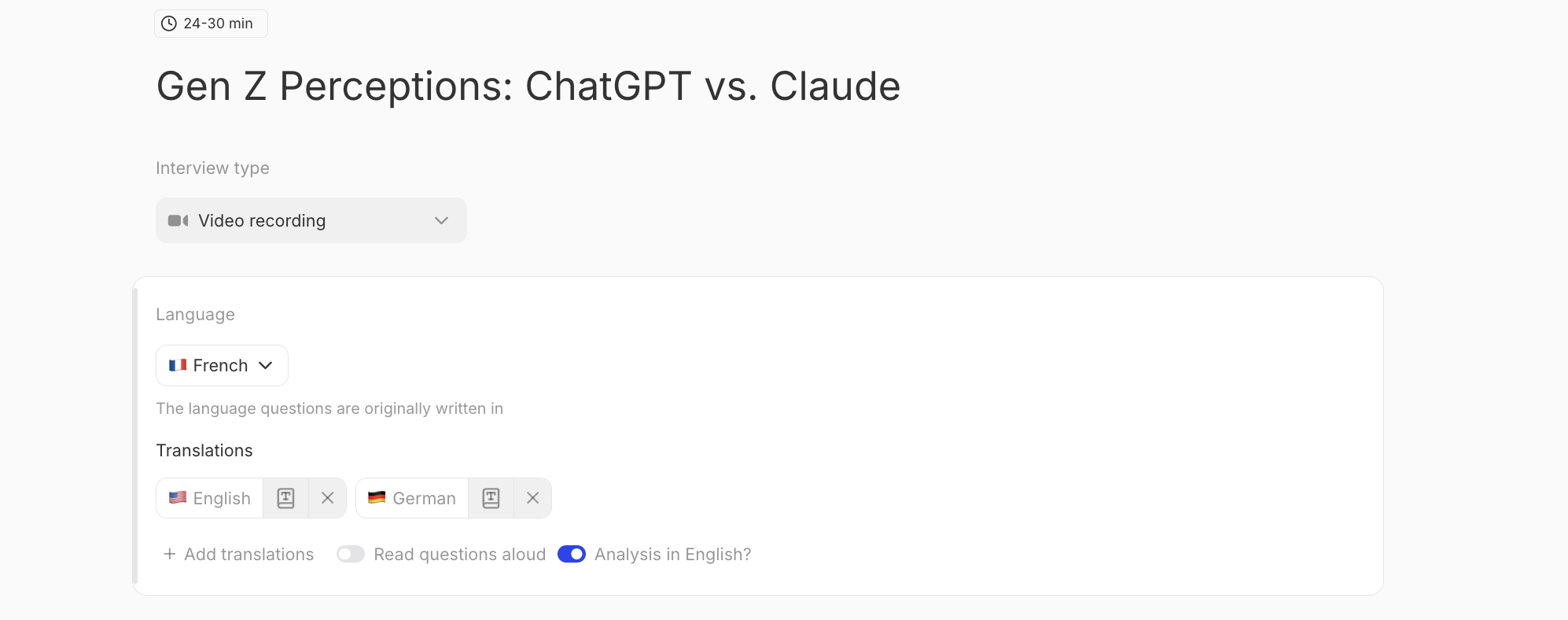 1. In this same **"Language"** section, click the ["](https://listen-labs.slack.com/archives/C070U1WMZEY/p1773256279931529)**+ Add Translations"** and select from the drop down. Find the complete list of available languages [here](/setup-to-launch/languages-complete-list).
2. Toggle on **Read Questions Aloud** if you would like the interviewer to read the questions in the respective language.
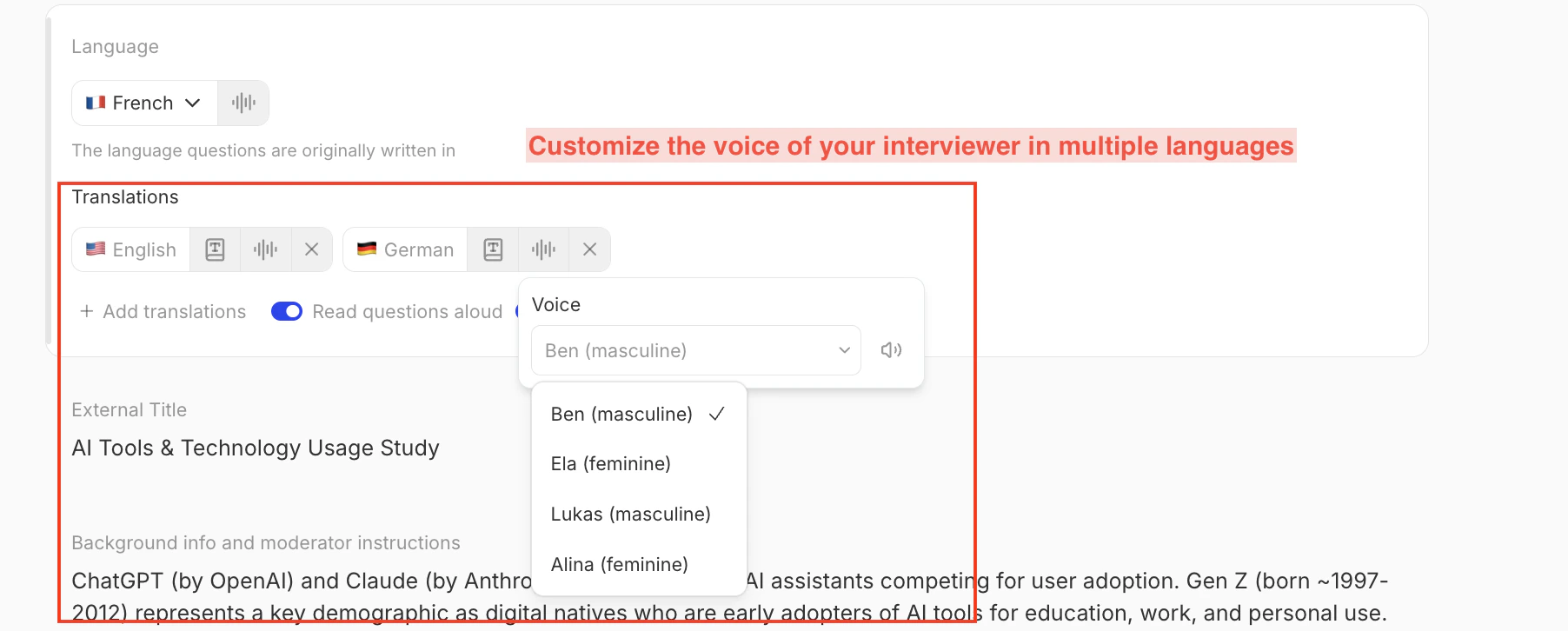
3. You can customize the voice of your interviewer across multiple languages
1. In this same **"Language"** section, click the ["](https://listen-labs.slack.com/archives/C070U1WMZEY/p1773256279931529)**+ Add Translations"** and select from the drop down. Find the complete list of available languages [here](/setup-to-launch/languages-complete-list).
2. Toggle on **Read Questions Aloud** if you would like the interviewer to read the questions in the respective language.
3. You can customize the voice of your interviewer across multiple languages
 When Translations are enabled:
* Participants will automatically see your study in their **browser’s default language** (if available).
* If their browser language isn’t supported, they’ll see the **study language** instead.
## Reviewing and Editing Translations
You have two ways to review translated content:
* **Preview in Platform:** In the Discussion Guide view click the **language icon** in the upper-right corner to update the guide to be available in the respective languages.
When Translations are enabled:
* Participants will automatically see your study in their **browser’s default language** (if available).
* If their browser language isn’t supported, they’ll see the **study language** instead.
## Reviewing and Editing Translations
You have two ways to review translated content:
* **Preview in Platform:** In the Discussion Guide view click the **language icon** in the upper-right corner to update the guide to be available in the respective languages.
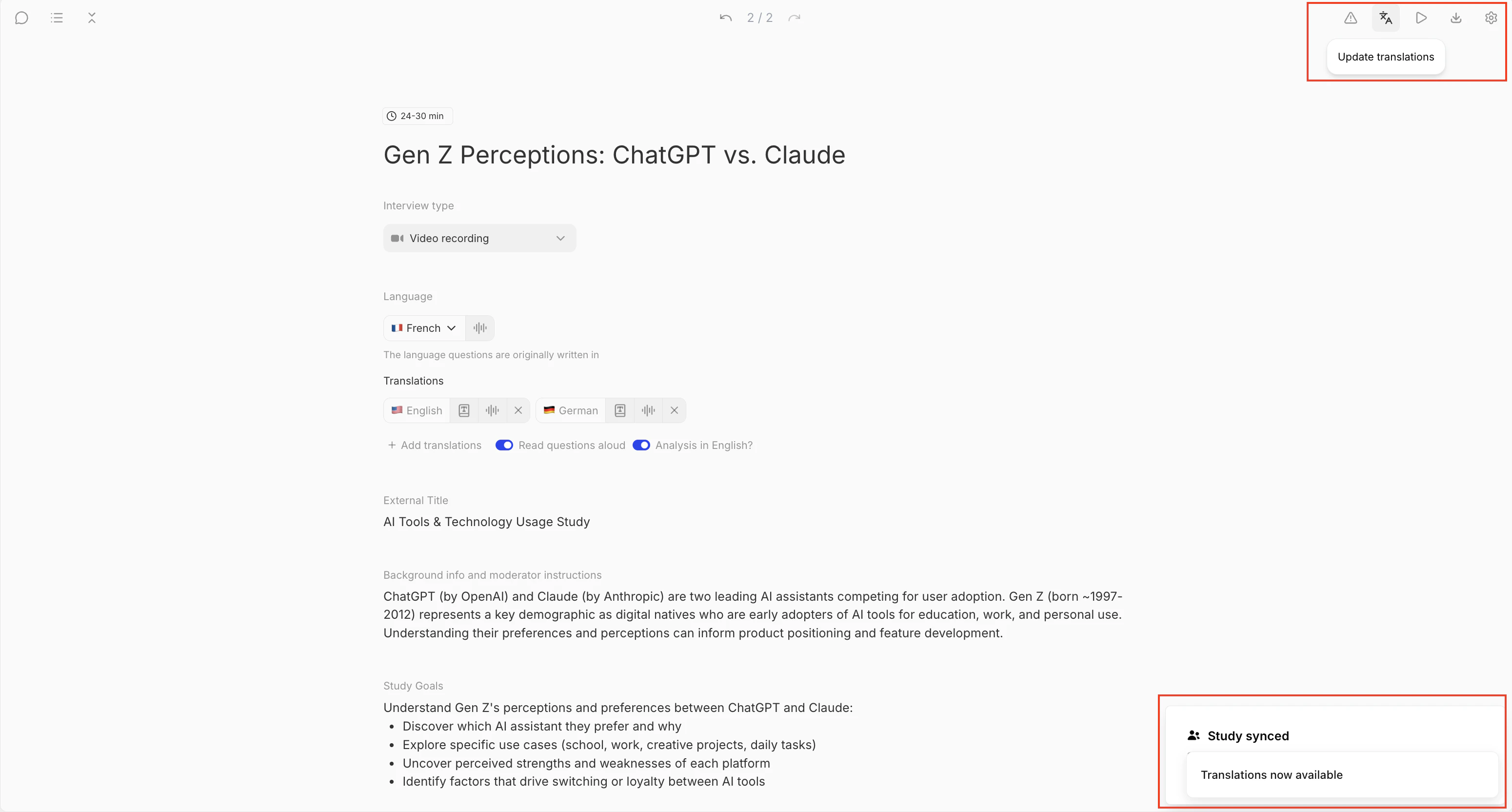 * **Export for Review:** In the same upper right hand corne you can export a **.csv** or **Word document** of your discussion guide in each language for translation review or external proofreading.
 ## Analyzing Results Across Languages
When a participant completes your study in another language, their **responses and transcripts are automatically translated** back into your Study Language for analysis.
This process happens instantly — no need to wait for manual translation or export files.
That means:
* You’ll see all individual responses in your **Study Language** (e.g., English) by default.
* Your **Reports**, **Responses Table,** **Details**, **Chat responses, Charts**, and other key insights will show in your **Study Language**.
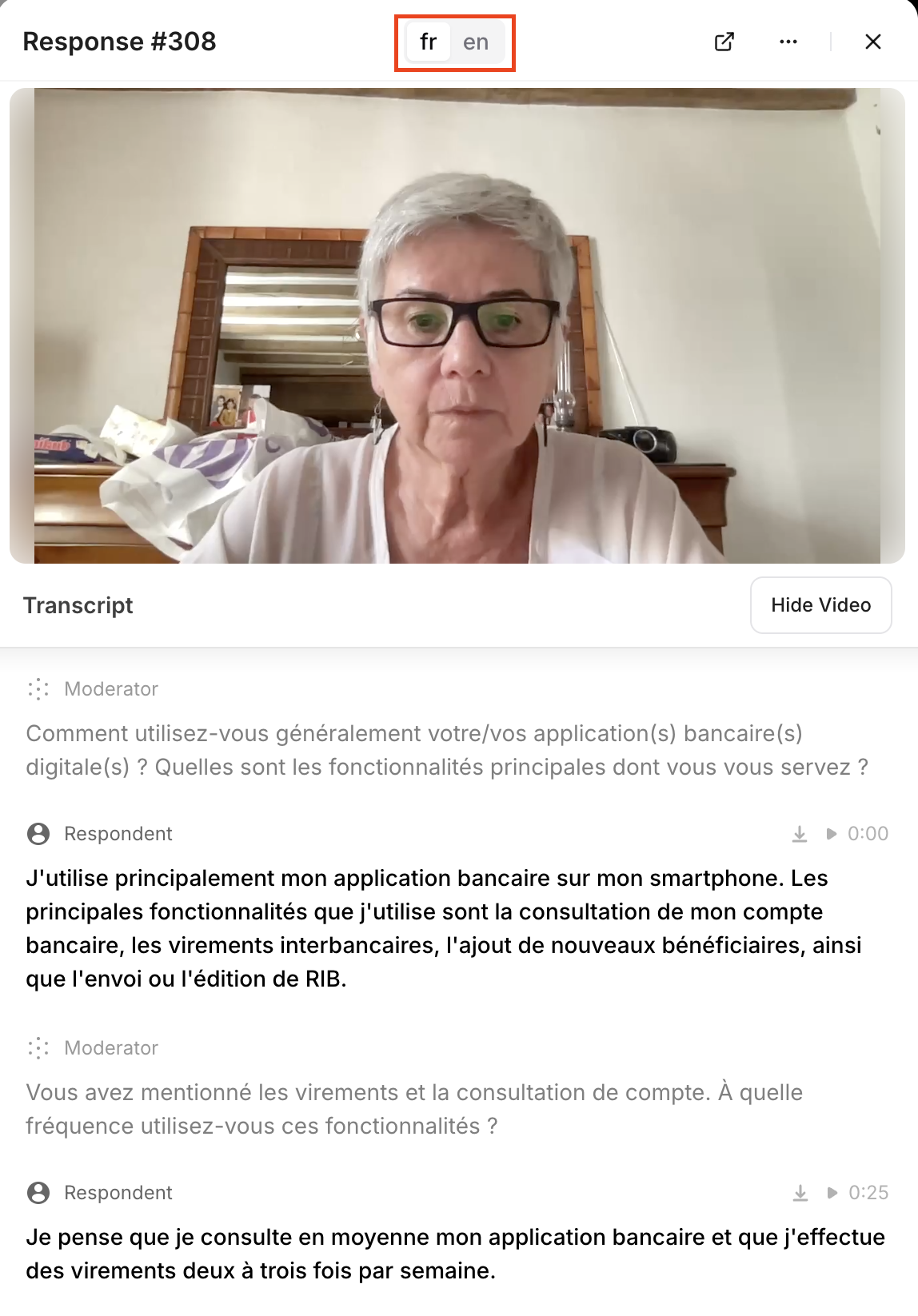
* The **original-language transcript** is also stored-- you can toggle between native language and Study Language in a participant's transcript window, or export them from the Responses tab.
## Analyzing Results Across Languages
When a participant completes your study in another language, their **responses and transcripts are automatically translated** back into your Study Language for analysis.
This process happens instantly — no need to wait for manual translation or export files.
That means:
* You’ll see all individual responses in your **Study Language** (e.g., English) by default.
* Your **Reports**, **Responses Table,** **Details**, **Chat responses, Charts**, and other key insights will show in your **Study Language**.
* The **original-language transcript** is also stored-- you can toggle between native language and Study Language in a participant's transcript window, or export them from the Responses tab.
 ***
## FAQs
**Which languages does Listen Labs support?**
Listen Labs currently supports translations across \~100 languages. You’ll find the current list in your **Study Settings → Translations**
**Can I edit the translations or upload my own?**
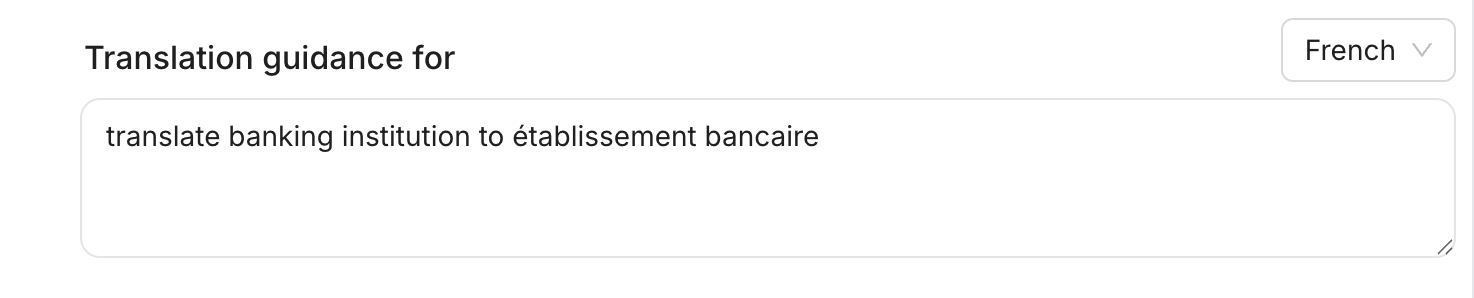
Yes. Use the **Translation Guidance** field under **Settings → Translations** to specify preferred terms or paste an entire translated guide. The AI will apply your custom text instead of generating a translation.
***
## FAQs
**Which languages does Listen Labs support?**
Listen Labs currently supports translations across \~100 languages. You’ll find the current list in your **Study Settings → Translations**
**Can I edit the translations or upload my own?**
Yes. Use the **Translation Guidance** field under **Settings → Translations** to specify preferred terms or paste an entire translated guide. The AI will apply your custom text instead of generating a translation.
 **Can I manually set the default language instead of relying on the browser?**
Yes. Append the language code to your participant link using the `lang=` URL parameter, then send the specific links to the appropriate regions.
For example, to default a study to Japanese, you would send this link:
```text theme={null}
**Can I manually set the default language instead of relying on the browser?**
Yes. Append the language code to your participant link using the `lang=` URL parameter, then send the specific links to the appropriate regions.
For example, to default a study to Japanese, you would send this link:
```text theme={null}