

Pro Tips
- Use clips for executive presentations: A 30-second highlight reel is far more compelling in a meeting than reading a quote aloud. Build clips for your key findings before any stakeholder presentation.
- Prompt the AI well: Specify content and key topics. Mention areas to focus on or omit. “Compile a clip showcasing diverse perspectives on usability” works better than just “make a clip.”
- Rename clips immediately: Give clips descriptive names as you create them so they’re easy to find and share later.
- Build a clip library: Create targeted clips for different purposes — an executive summary reel, a usability problems reel, a positive moments reel — and grow them into a reusable library over time.
Quick Reference
Complete Written Guide
Step 1: Access the Clips Tab
- Open your study from the Listen Labs dashboard
- Navigate to the Analysis tab
- Click Clips in the analysis navigation
- You’ll see AI-generated reels based on your themes, plus any clips you’ve created manually
Step 2: Create a Custom Video Clip Reel (Manual)
To build a clip reel from specific participant quotes:- Open a participant’s response panel
- Highlight the text of a quote you want to include
-
Click Save
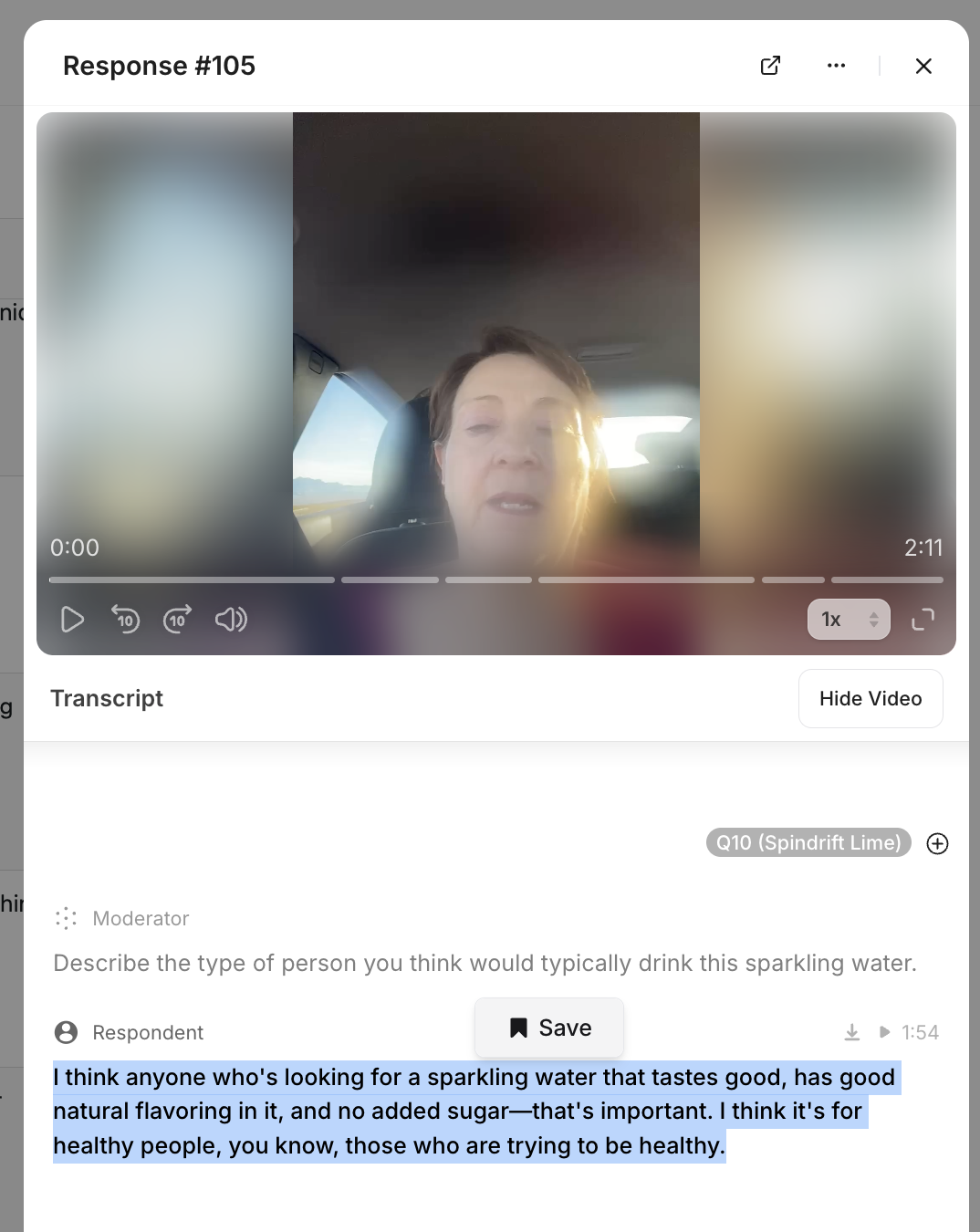
- Choose to add to an existing clip or click + Add New Clip to create a new one (give it a name)
- Repeat for all the quotes you want to include
- Find all saved clips in Analysis → Clips
If your study uses translations, you must highlight the quote in the native language to save it to a clip. Toggle to the native language at the top of the participant’s response panel.
Step 3: Generate a Video Clip Reel with AI
To have the system build a clip for you:- Click + Create New Clip in the upper left of the Clips page
- Enter a Name for your reference
- Add an AI Prompt describing what you’d like the clip to include
- “Summarize the key findings from the study in a clip.”
- “Compile a clip showcasing diverse perspectives on usability.”
- “Generate a clip summary of the study’s conclusions.”
- Click Generate — the system scans transcripts and creates a highlight reel based on your prompt
- ✅ Specify content and key topics to focus on
- ✅ Mention areas to include or omit
- ❌ Can’t change animations or visual effects
- ❌ Can’t specify exact timestamps or clip durations
Step 4: Edit and Manage Your Clips
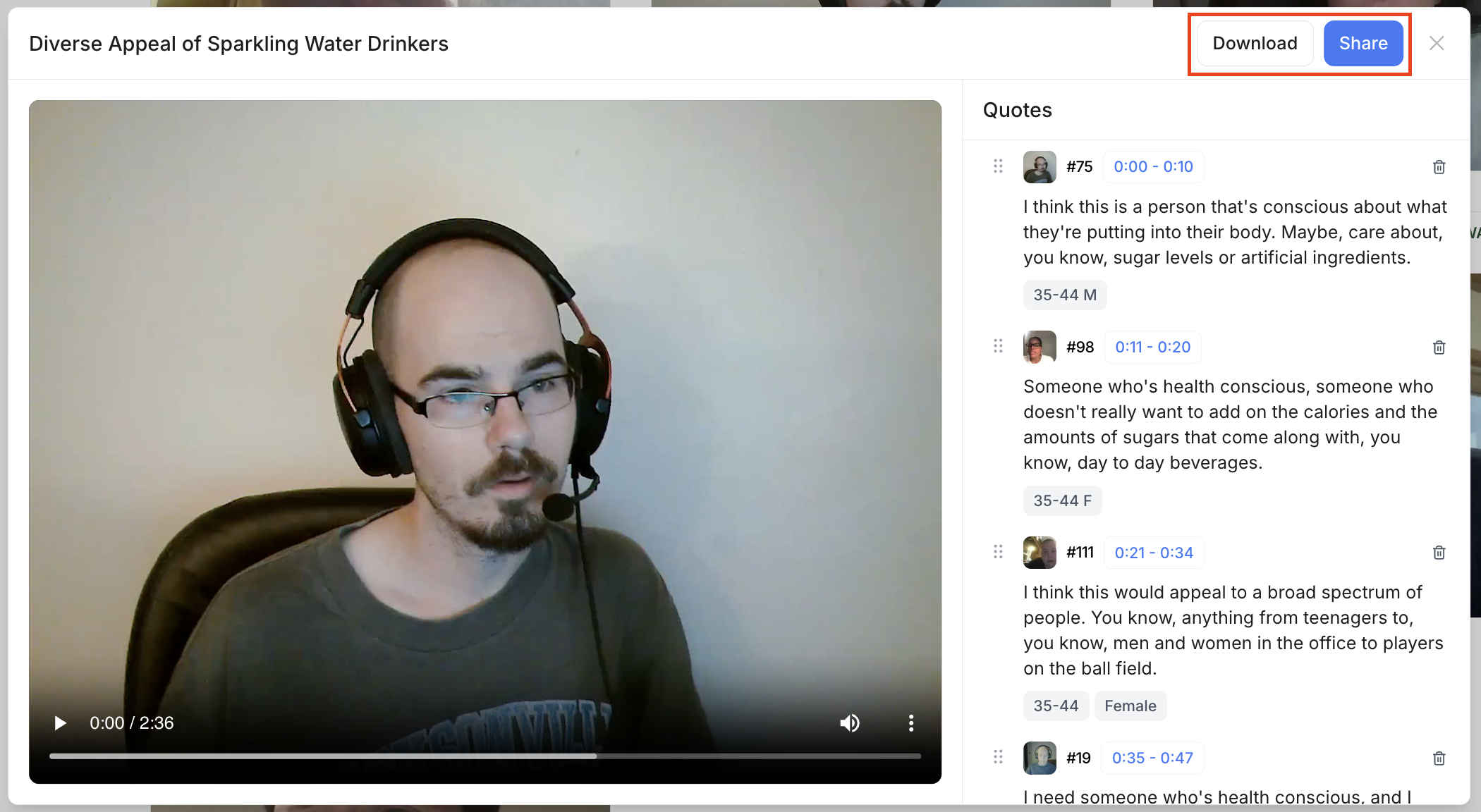
Rename a clip: Open the clip, click on the title text, and type a more descriptive name. Reorder quotes: Open a clip, then drag and drop the quotes into the order you prefer. Remove a quote: Open the clip and click the trash can icon next to the quote you want to remove.Step 5: Share Your Clips
- Open a clip
- Click the Share button
- Select Share link with anyone
- Copy the link and send via email, Slack, or any channel
Step 6: Download Your Clips
Download a full clip reel:- Open a clip
- Click the Download button
- Rendering may take a few minutes — you’ll receive an email with a download link once it’s ready
What’s New in Clips (January 2026)
- Non-English translated captions are now available in clip reels
- Screen recordings can be included in highlight reels (contact support to request)
- Edit auto-generated tags that are included per respondent
- Move clips into different orders within a reel
Anything missing? Let us know at support@listenlabs.ai and we’ll help you out!